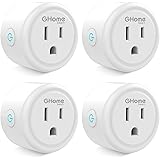
Encountering issues with your smart home devices after changing your Wi-Fi network can be a common frustration. Specifically, trying to **change Wi-Fi on a TP-Link Kasa Smart Plug** or other Kasa devices might seem complicated since there isn’t a direct option within the Kasa app itself. This often leads users to believe a complete factory reset is necessary, which means losing all your carefully configured schedules and settings.
Fortunately, as demonstrated in the video above, there’s a straightforward solution that allows you to reconnect your Kasa smart devices to a new Wi-Fi network without erasing your personalized settings. By understanding the difference between a soft reset (setup mode) and a factory reset, you can efficiently update your device’s network credentials while preserving your existing automation.
Why Can’t You Change Kasa Wi-Fi Directly in the App?
Many users wonder why the Kasa app doesn’t offer a simple “change Wi-Fi” option. This limitation stems from how smart devices securely connect to your home network. Unlike your phone or computer, which can easily switch networks, smart devices often establish a more direct and persistent connection. This design choice enhances security and stability, yet it means direct network changes require a physical interaction with the device.
Instead of an in-app button, Kasa devices rely on a setup mode that allows them to broadcast their own temporary Wi-Fi signal. Your phone then connects to this temporary network to configure the device for your new home Wi-Fi. This process ensures only authorized users can make network changes, maintaining the integrity of your smart home ecosystem.
Soft Reset vs. Factory Reset: Understanding the Difference
When you need to update the Wi-Fi settings for your Kasa smart devices, it’s crucial to differentiate between a soft reset and a factory reset. The video highlights this distinction, which is key to preserving your device’s configurations.
A **soft reset**, or putting the device into “setup mode,” is what you’ll perform for a Wi-Fi change. This action clears the existing Wi-Fi credentials from the device but importantly retains all other settings, such as schedules, scenes, and device names. Your TP-Link Kasa Smart Plug, Kasa camera, or doorbell will remember its purpose and routines, saving you the hassle of reconfiguring everything from scratch.
Conversely, a **factory reset** completely wipes all data from the device, returning it to its original out-of-the-box state. This means all Wi-Fi settings, schedules, custom names, and any other personalized configurations will be erased. While sometimes necessary for severe troubleshooting, it’s generally avoided when simply changing your home Wi-Fi network.
Step-by-Step Guide to Changing Wi-Fi on Your Kasa Devices
The process of reconnecting your Kasa smart devices to a new Wi-Fi network involves a few simple steps. This method is consistent across various TP-Link Kasa products, whether you have a smart plug, a camera, or even a smart light switch.
1. Initiate the Soft Reset to Enter Setup Mode
The first step is to physically put your Kasa device into setup mode. For most TP-Link Kasa Smart Plugs and similar devices, this involves pressing and holding the reset button for a specific duration. Typically, you will press this button for about **five seconds**.
Once the device is in setup mode, its Wi-Fi indicator light will begin to blink, often amber and green. This blinking light signifies that the device is ready to be configured and is broadcasting its temporary Wi-Fi signal.
2. Re-add the Device to the Kasa App
With your device in setup mode, open the Kasa Smart app on your smartphone or tablet. Navigate to the main screen and look for a plus (+) icon, usually located in the upper right-hand corner. Tap this icon to begin adding a new device.
You will then be prompted to select the type of device you are setting up. Choose “Smart Plug,” “Smart Camera,” or whichever Kasa product you are reconfiguring. The app will then guide you through verifying that the device is plugged in and that its Wi-Fi light is blinking, confirming it’s in setup mode.
3. Connect Your Phone to the Device’s Wi-Fi
This is a critical step where your phone temporarily connects directly to the Kasa device itself. The Kasa app will instruct you to leave the app and go to your phone’s Wi-Fi settings:
-
For iPhone Users: Swipe down from the top-right corner (or up from the bottom for older models) to access Control Center. Press and hold the Wi-Fi icon, then press and hold it again to view available networks. Find the network named “TP-Link_” followed by some characters and connect to it. Wait for the checkmark to appear next to its name.
-
For Android Users: Go to your phone’s Settings app, then tap on “Connections” or “Network & internet,” and select “Wi-Fi.” Locate the “TP-Link_” network in the list and tap to connect. Ensure you see “Connected” or a similar status.
Once your phone is connected to the TP-Link network, return to the Kasa Smart app. The app should now recognize the connection and proceed to the next step.
4. Choose Your New Home Wi-Fi Network (Crucial: Do Not Reset!)
Upon reconnecting to the Kasa app, a vital prompt will appear. It might ask if you want to “Reset Device” or “Do Not Reset.” **It is absolutely essential to choose the “Do Not Reset” option.** Selecting “Reset Device” would perform a factory reset, erasing all your cherished settings and schedules.
After opting “Do Not Reset,” the Kasa app will then display a list of available Wi-Fi networks. Select your new home Wi-Fi network from this list and enter its password. The app will then instruct the Kasa device to connect to this new network using the provided credentials.
Wait patiently as the device establishes its connection. Once successful, the Kasa app will confirm that your device is now online with the new Wi-Fi network. You can then test its functionality to ensure everything is working correctly.
Troubleshooting Common Kasa Wi-Fi Connectivity Issues
While changing your TP-Link Kasa Smart Plug Wi-Fi is generally straightforward, you might encounter occasional issues. Here are some common problems and their potential solutions:
-
Incorrect Wi-Fi Password: Double-check that you are entering the correct password for your new home Wi-Fi network. Passwords are case-sensitive.
-
2.4 GHz vs. 5 GHz Network: Most Kasa devices only support 2.4 GHz Wi-Fi networks. If your router broadcasts both 2.4 GHz and 5 GHz, ensure you are trying to connect your Kasa device to the 2.4 GHz band. Many modern routers use a single SSID (network name) for both; if you have issues, consider temporarily separating them in your router settings or standing closer to the router, as 2.4 GHz has better range.
-
Weak Wi-Fi Signal: Ensure your Kasa device is within a good range of your Wi-Fi router. Walls, floors, and other electronic devices can interfere with the signal. Consider using a Wi-Fi extender if the device is in a dead zone.
-
Interference from Other Devices: Other wireless devices (cordless phones, microwaves, Bluetooth devices) can sometimes interfere with Wi-Fi signals. Try to minimize these sources of interference or move your Kasa device.
-
Router Settings: Occasionally, specific router settings like MAC address filtering or parental controls can block new devices. Temporarily disabling these features during setup might help, then re-enabling them with the Kasa device whitelisted.
-
Outdated Kasa App: Ensure your Kasa Smart app is updated to the latest version. App updates often contain bug fixes and improved compatibility.
-
Router Reboot: Sometimes, simply restarting your home Wi-Fi router can resolve underlying network issues that prevent devices from connecting.
By following these troubleshooting tips and the detailed steps for changing the Wi-Fi on your TP-Link Kasa Smart Plug or other Kasa devices, you can quickly get your smart home back in sync with your new network. Remember, the key is the soft reset process that puts your device into setup mode while retaining all your valuable schedules and settings.
Kasa Smart Plug Wi-Fi: Your Questions Unplugged
What should I do if I change my home Wi-Fi network and my Kasa smart devices stop working?
You’ll need to reconnect your Kasa devices to the new Wi-Fi network by putting them into “setup mode,” which is a soft reset that preserves your existing settings.
Why can’t I just change the Wi-Fi settings directly within the Kasa app?
Kasa devices use a secure, direct connection method that requires a physical interaction with the device itself to change Wi-Fi, rather than a simple in-app button.
What is the difference between a “soft reset” and a “factory reset” for Kasa devices?
A soft reset (setup mode) clears only the Wi-Fi credentials while keeping your schedules and device names. A factory reset, however, completely wipes all data and settings, returning the device to its original state.
Will changing my Kasa device’s Wi-Fi erase all my personalized schedules and settings?
No, if you perform a soft reset to put the device into setup mode, your Kasa device will retain all your customized schedules, scenes, and names.
Do Kasa smart devices work with both 2.4 GHz and 5 GHz Wi-Fi networks?
Most Kasa devices primarily support 2.4 GHz Wi-Fi networks. When reconnecting, make sure you are selecting the 2.4 GHz band from your router’s available networks.