Are you ready to transform your ordinary home into a smart haven with effortless voice control? The journey often begins with simple, yet powerful, smart plugs. As the video above demonstrates, integrating these devices with your Amazon Alexa system can unlock incredible convenience, from managing seasonal decorations to streamlining daily routines. This guide will delve deeper into the process, providing detailed insights and expanding on the steps shown in the video, ensuring your smart plug setup and Alexa integration are seamless.
Understanding Your Smart Plug Setup: The Foundation
Before any device can sing in harmony with Alexa, it must first be properly introduced to your home Wi-Fi network. Most smart plugs, like the ones featured in the video, rely on a dedicated app for their initial setup. This app acts as the plug’s digital passport, granting it access to your network and preparing it for broader smart home ecosystems.
Begin by locating the specific app recommended by your smart plug manufacturer. For many popular brands, this might be the versatile Smart Life App, as highlighted in the video. Downloading and installing this app is your first crucial step towards smart home automation.
Registering Your Smart Life App Account
Upon launching the app, you will typically be prompted to register an account. This often involves providing an email address and creating a secure password. A verification code, sent to your email, usually confirms your identity. Think of this as establishing a secure communication channel for your smart devices.
It’s important to use a strong, unique password for your account. This safeguards your smart home from unauthorized access, much like locking the front door protects your physical home. Once registered, the app is ready to discover and configure your new smart plug.
Connecting Your Smart Plug to Wi-Fi: The 2.4 GHz Advantage
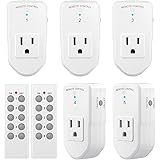
With the app ready, it’s time to bring your smart plug online. This involves a straightforward physical and digital pairing process. First, plug your smart device into a power outlet.
Next, initiate pairing mode on the plug itself. The video clearly illustrates holding the power button for approximately six seconds until a blue light begins to blink rapidly. This blinking pattern is like a signal flare, indicating the plug is actively searching for a Wi-Fi network to join.
The Importance of 2.4 GHz Wi-Fi for Smart Plug Setup
When it comes to smart home devices, the 2.4 GHz Wi-Fi band is often the preferred choice, and for good reason. Many modern routers operate on both 2.4 GHz and 5 GHz frequencies. While 5 GHz offers faster speeds over shorter distances, the 2.4 GHz band provides a wider range and better penetration through walls and obstacles.
This extended reach is crucial for smart plugs, which might be placed in various locations around your home, including garages or outdoor areas. During the app setup, ensure your smartphone is connected to your home’s 2.4 GHz Wi-Fi network. If your router broadcasts a single network name for both frequencies, you might need to check your router settings or temporarily disable the 5 GHz band during the initial setup to ensure a successful connection. Entering your Wi-Fi password securely in the app then allows the plug to join your home network, much like a new guest being given the keys to the house.
Bridging the Gap: Linking Smart Life with Amazon Alexa
Once your smart plug is successfully connected to your Wi-Fi and appears within its dedicated app, the next exciting step is to introduce it to your Amazon Alexa ecosystem. This integration is remarkably user-friendly and often described as a “one-click” process, truly bridging the gap between your smart devices and voice control.
Navigate to the settings or profile section within your smart plug’s app. Look for an option labeled “Integration” or “Link with Smart Assistants.” Clicking on the Alexa option will typically redirect you to the Amazon Alexa app or a web login for your Amazon account. You’ll then be prompted to authorize the connection between the two services.
Discovering Devices in the Alexa App
After successfully linking the accounts, return to your Alexa app. You might need to refresh the ‘Devices’ section, often by pulling down on the screen. Alexa will then perform a scan, discovering all compatible devices linked through your smart plug app. Your newly added smart plug will appear under ‘Plugs’ or ‘All Devices’.
At this stage, you have the option to rename your smart plug to something memorable and easy for Alexa to understand, like “Christmas Tree Lights” or “Bedroom Lamp.” This customization is key to making voice commands intuitive and effective.
Mastering Voice Control with Alexa Groups
The true power of Alexa smart plug integration comes alive with device grouping. Instead of commanding each smart plug individually, you can combine multiple devices into a single, cohesive group. As the video demonstrates with the “Christmas Lights” example, this significantly simplifies control.
Within the Alexa app, go to the ‘Devices’ section and select the ‘+’ icon in the top right corner to ‘Add Group.’ Here, you can create custom names for your groups, such as “Living Room Ambiance,” “Outdoor Decorations,” or “Morning Routine Devices.” Once named, you select which smart plugs or other smart devices belong to that group.
Commanding Your Smart Home
Imagine the convenience: with a single voice command like, “Alexa, turn on the Christmas Lights,” all the smart plugs assigned to that group instantly activate, bringing your festive inflatables and twinkling lights to life. Similarly, “Alexa, turn off the lights” can plunge a room into darkness.
This capability extends far beyond holiday decorations. You could create a “Good Morning” group that activates a coffee maker smart plug, turns on a bedside lamp, and starts a smart diffuser, all with one simple phrase. The possibilities for home automation and enhanced daily living are truly expansive with effective smart plug setup and thoughtful Alexa grouping.
Plug Into Knowledge: Your Smart Plug & Alexa Q&A
What is a smart plug and why would I use one?
A smart plug allows you to control ordinary appliances and lights using your voice or an app. They bring convenience by helping you manage things like seasonal decorations or daily routines effortlessly.
What is the first step to set up a smart plug?
The first step is to download the specific app recommended by your smart plug manufacturer, such as the Smart Life App. This app will introduce the plug to your home Wi-Fi network.
What type of Wi-Fi do smart plugs typically use?
Most smart plugs rely on the 2.4 GHz Wi-Fi band because it offers a wider range and better signal penetration through walls compared to 5 GHz. You should connect your smartphone to the 2.4 GHz network during setup.
How do I connect my smart plug to Amazon Alexa for voice control?
Once your smart plug is set up in its dedicated app, navigate to the app’s settings to link it with your Amazon Alexa account. Afterward, use the Alexa app to discover your new device and enable voice control.